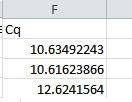
Exporting Data to a CSV File
BR.io provides options to export the data corresponding to the amplification traces, and data from the Cq data, to CSV files.
To export the chart data
| ► | Click the  icon in the upper-right corner of the chart and select Download CSV. icon in the upper-right corner of the chart and select Download CSV. |
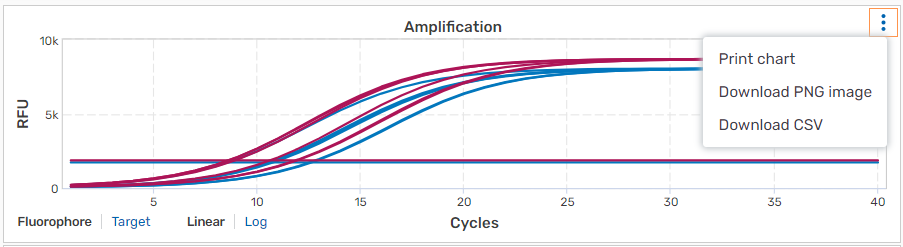
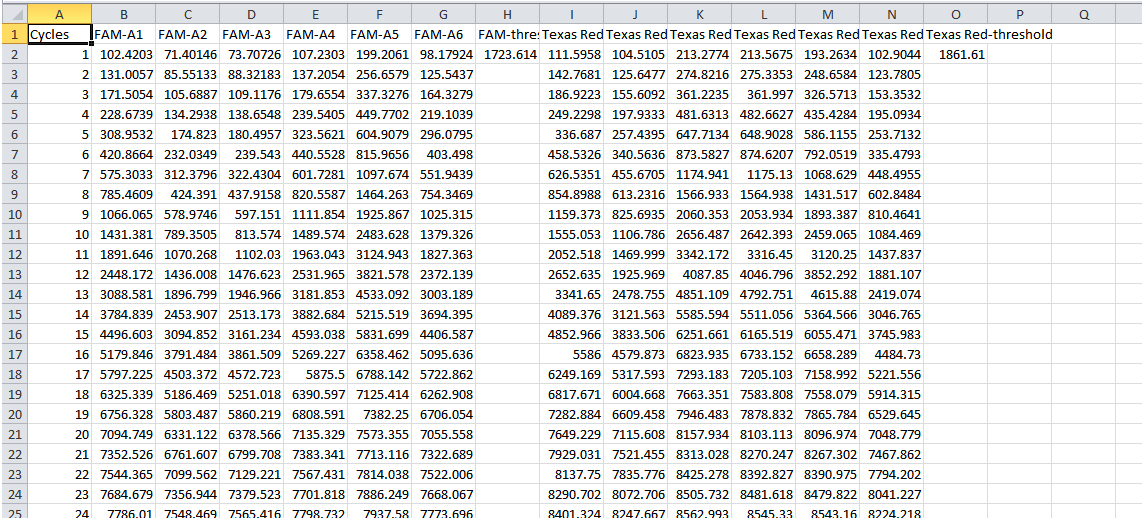
The trace data is immediately exported to a CSV file that you can open in Microsoft Excel. Following is a partial view of data from the above amplification chart.
To export the Cq data table
| ► | In the toolbar on the right, click Export. |

The data is immediately exported to a CSV file that you can open in Microsoft Excel. Following is a partial view of the table data:
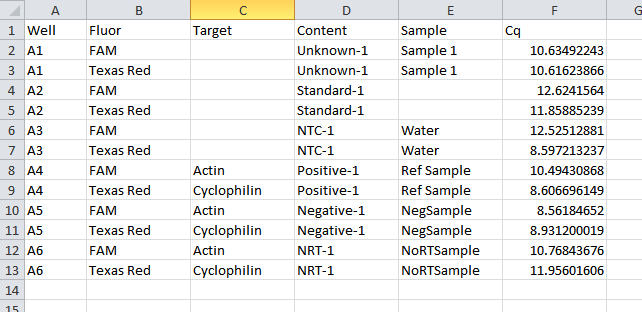
Tip: In the Excel file, click and drag the edge of a column to resize it and display full contents.