Viewing Completed Run Details
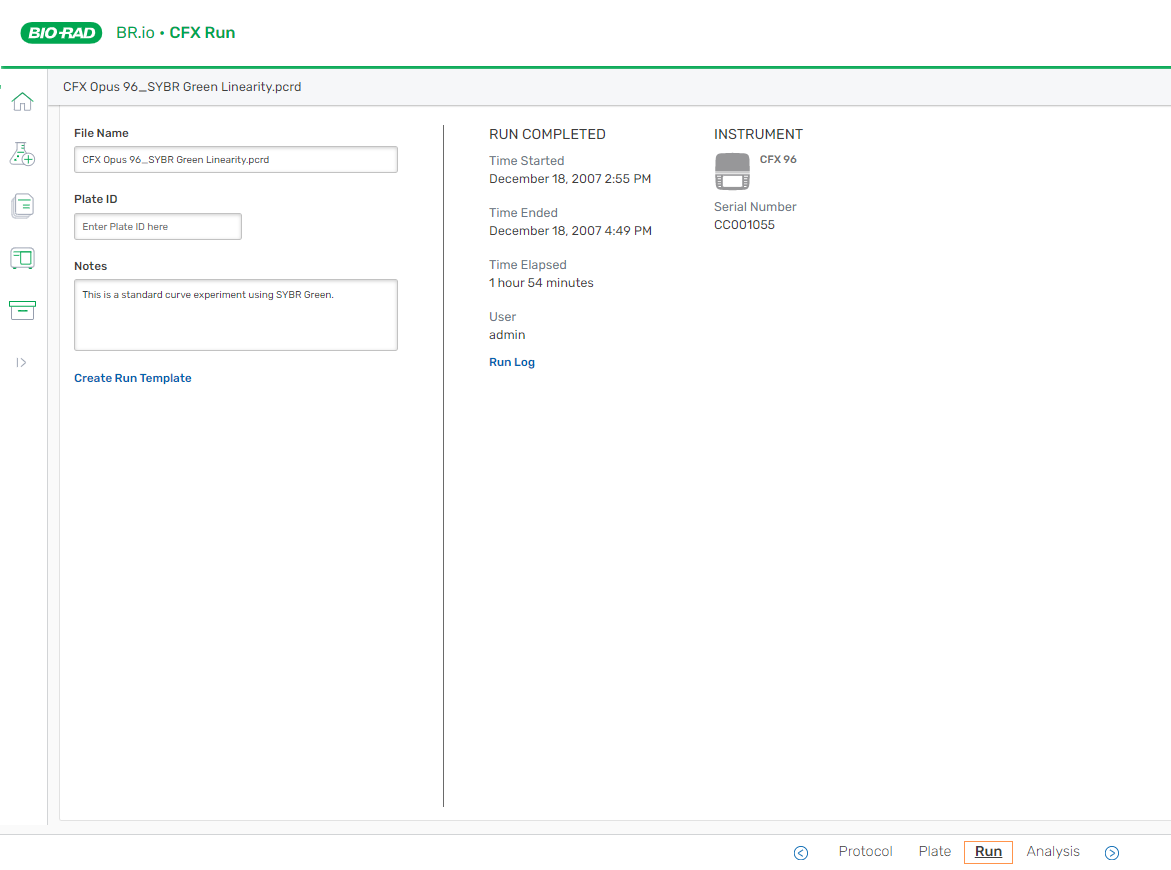
For completed runs that were executed on your connected instrument, or for completed CFX runs from CFX Maestro that you uploaded to BR.io, you can view the following information on the BR.io Run Details page.
You can view and change the following editable fields:
|
●
|
Create Run Template link |
You can view the following non-editable fields:
|
●
|
Start time, end time, and elapsed time |
|
●
|
Instrument model and serial number |
To view run details
|
1.
|
From the Home or Files page, open the completed run file. |
|
2.
|
In the lower menu bar, click Run. |
Tip: You can also navigate to other pages using the workflow navigation bar at the bottom of the Run details page.
The Run details page opens.
|
3.
|
(Optional) Edit the File Name and Plate ID fields in the left pane, and add notes. |
Note: If the you started a run from an organization project folder, you can view completed runs from the My BRio folder or the project folder. If started a run from the project folder, the following applies:
|
●
|
Completed CFX Opus protocol runs are located in the project folder from which the run started. |
|
●
|
Completed PTC Tempo runs are located in the My BRio folder. You must move the completed run back to your project folder. |
For more information, see Managing Organizations.