
Starting a Run
Important: You cannot start a run in BR.io if you are logged in to an unlocked instrument. Locking the instrument will keep you logged in. To start a new run, unlock the instrument and log out.
To start a run from the Instrument Control page
| 1. | If you haven't already done so, reserve an instrument and assign a protocol to that instrument (or to those instruments). |
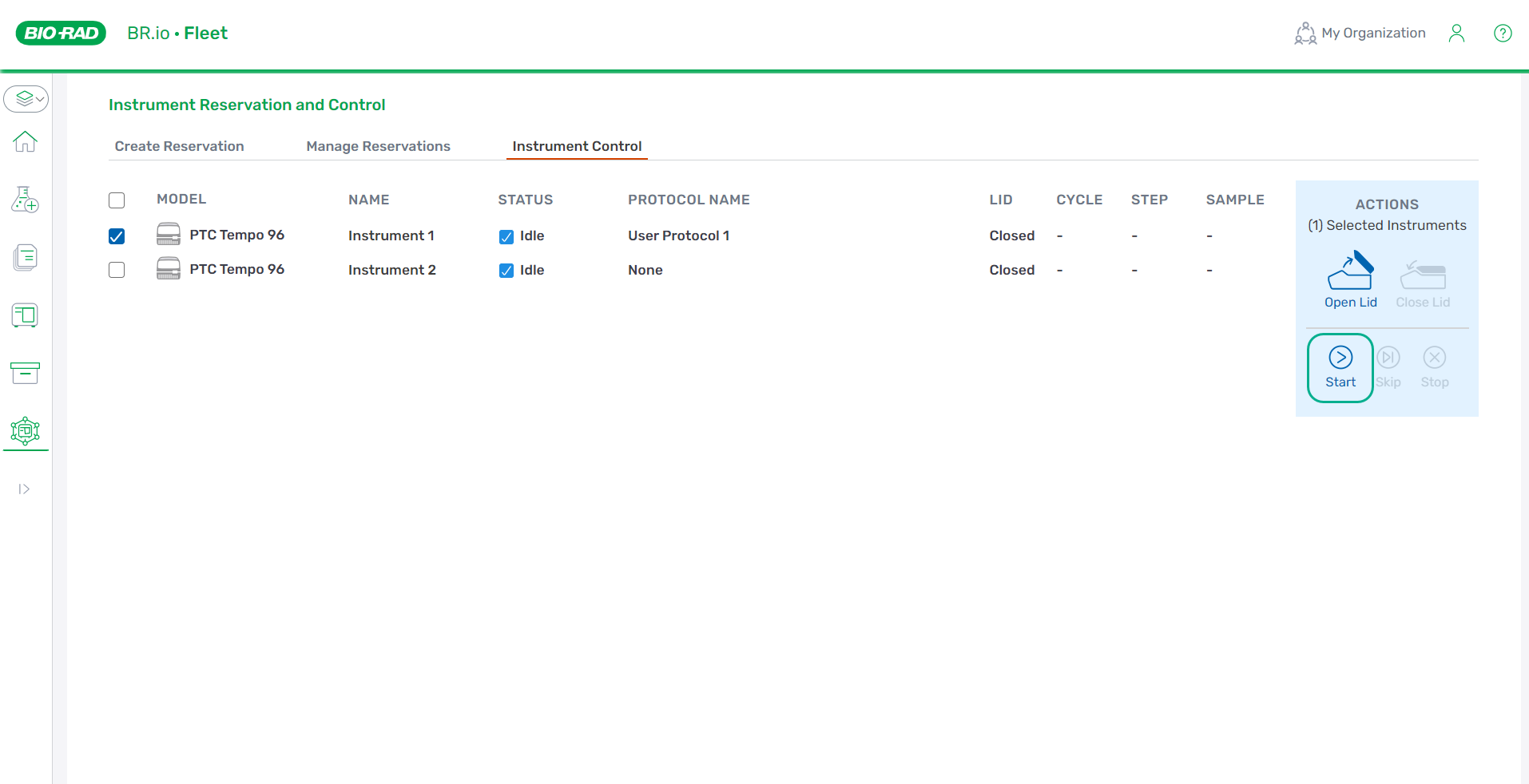
| 2. | Click the Instrument Control tab to open the Instrument Control page. |
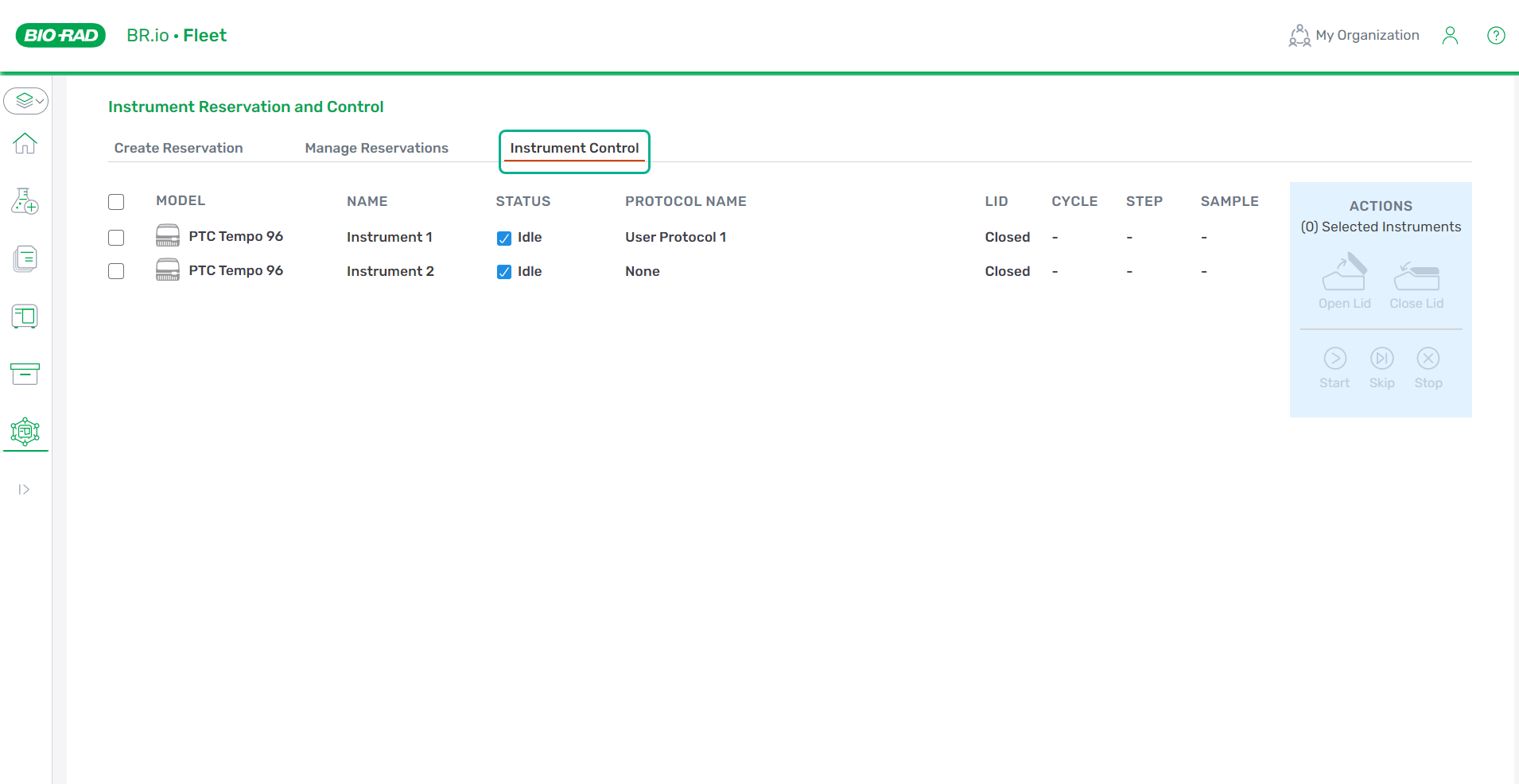
| 3. | Select the checkbox for each instrument for which you are starting the run. This enables the Start Run button if all the selected instruments can start the run. |
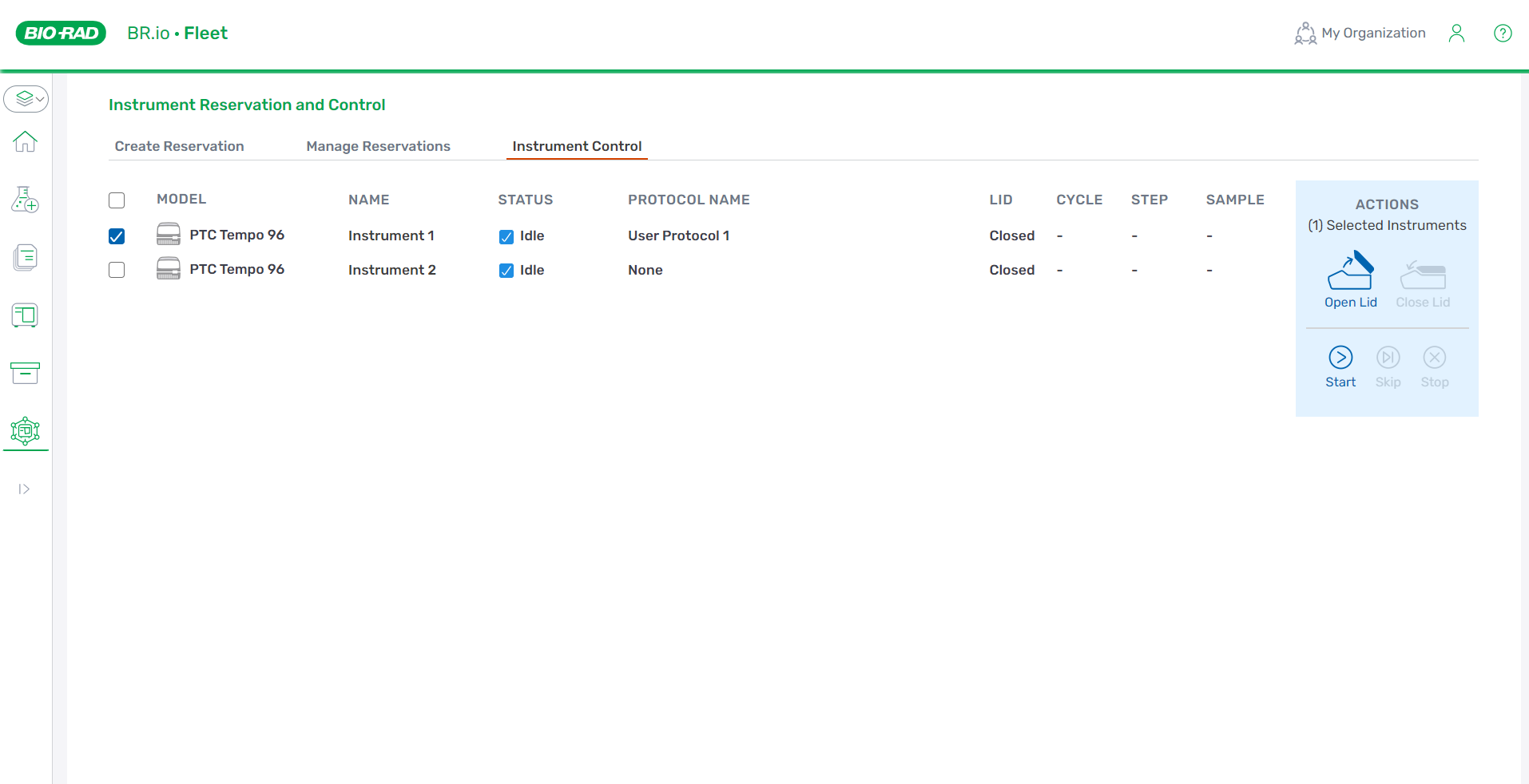
| 4. | Click the Open Lid icon on the right. The Lid column displays "Opening," and then "Opened." |
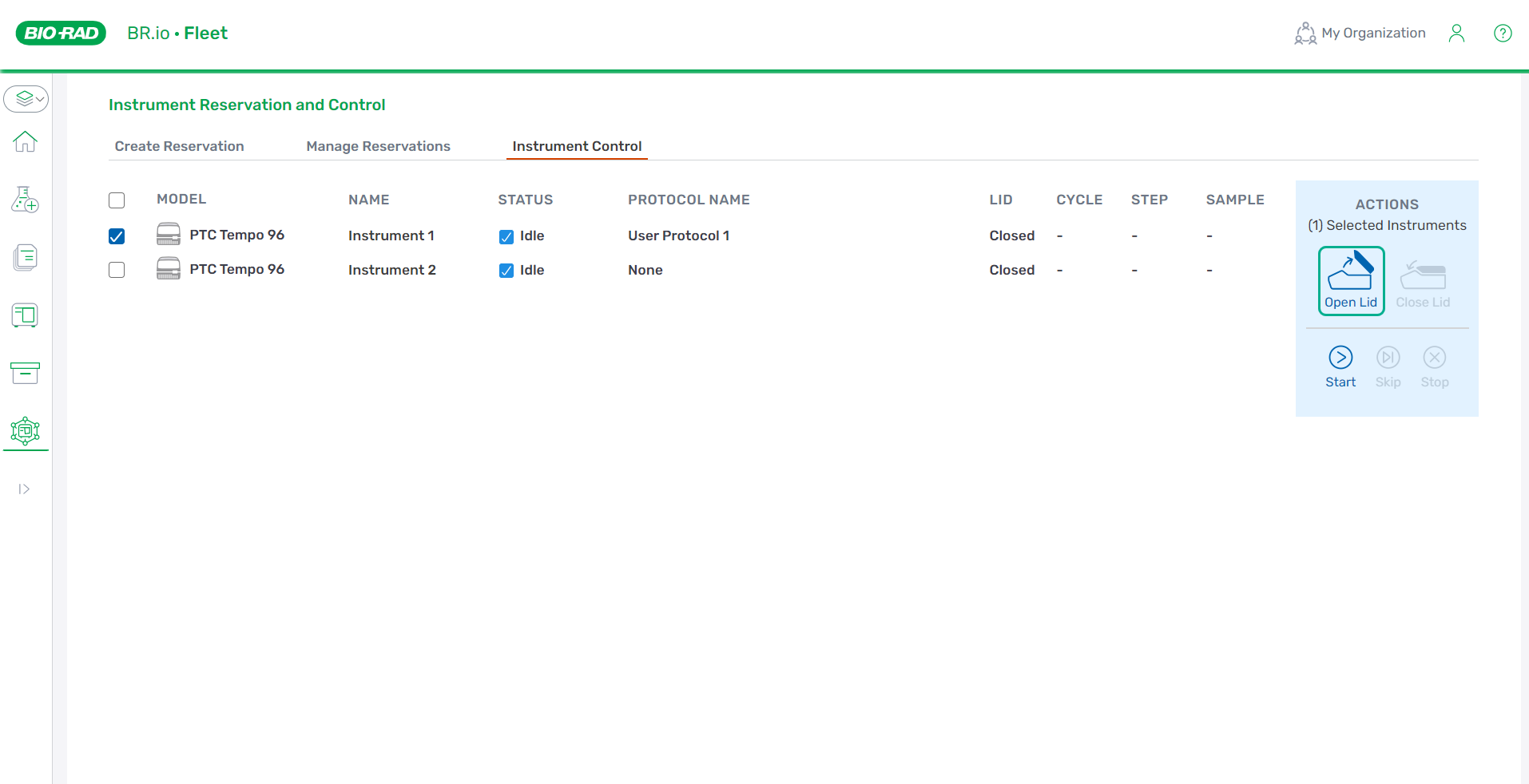
| 5. | Prepare the plate(s) on the instrument(s). |
| 6. | Click the Close Lid icon on the right. The Lid column displays "Closing," and then "Closed." |
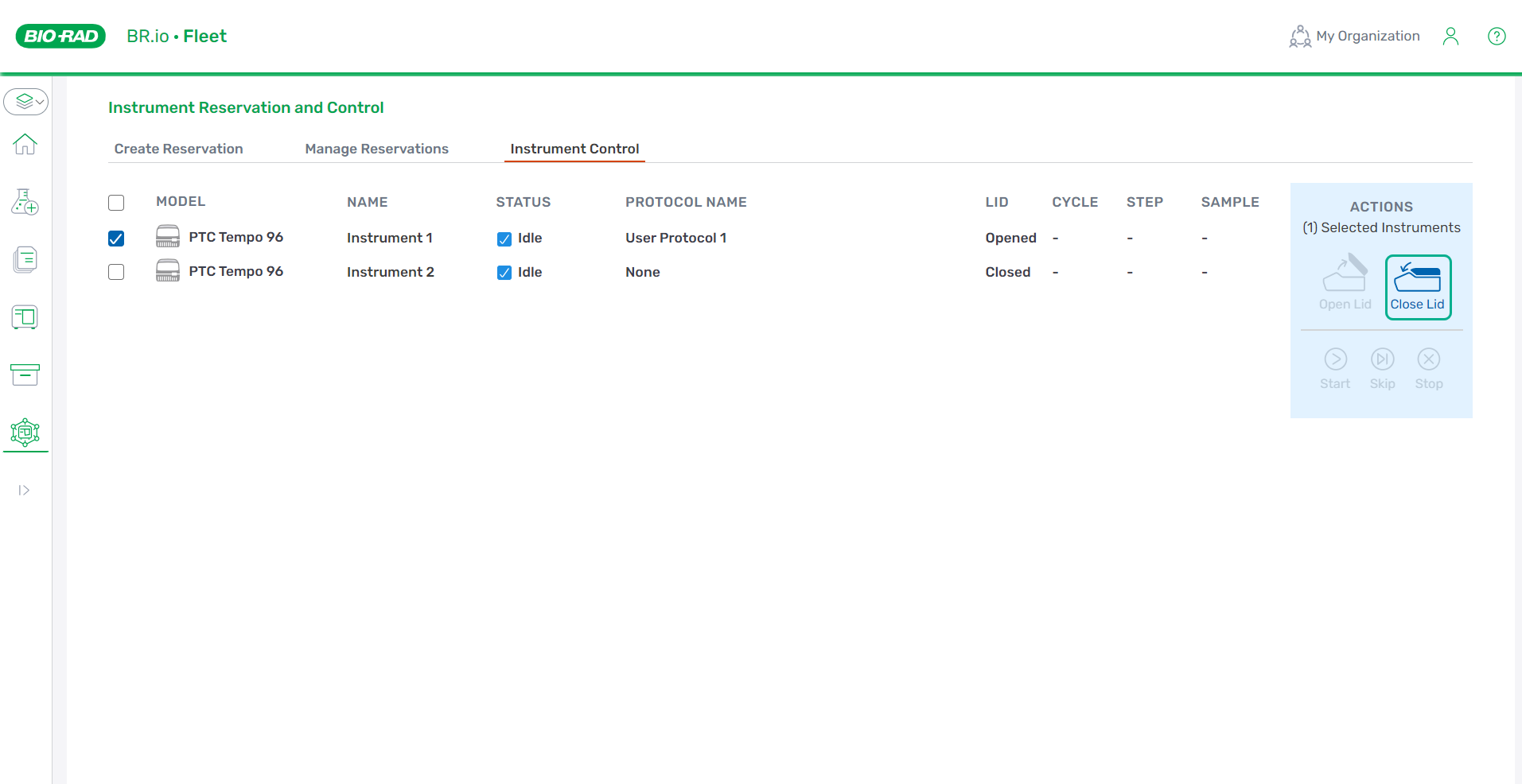
| 7. | Click Start on the right. |
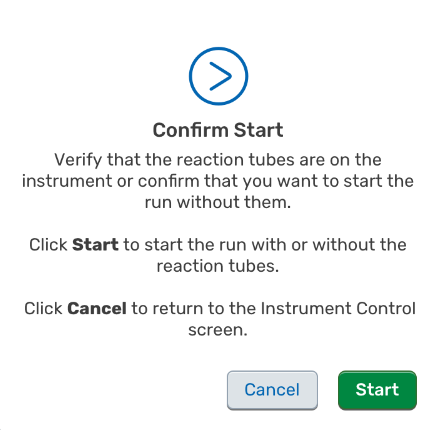
| 8. | (Optional) If no reaction tubes are detected on the instrument, click either Start in the Confirm Start modal to start the run without reaction tubes or Cancel to cancel the run. |
Important: If no reaction tubes are detected on the instrument, you must also either confirm or cancel the run on the PTC Tempo instrument interface.
| 9. | The Status column changes to Running. The page also displays the protocol cycle, step number, and sample temperature. |

On the Instruments page, the instrument's status appears as running. The Instruments page also displays the protocol name as well as the run's cycle and step status. For more information about the instrument page, see Viewing Instrument Details.

When a protocol run completes, the PTC Tempo removes the assignment from BR.io. To re-run the protocol in BR.io, you must re-assign it to the instrument.
Additionally, the user can access the run report by clicking the Run Report link of the Run Details page. To access the run report, navigate to Files menu, select the run, and click the Run Report link. For more information, see Viewing the Run Report.